










Skip to content
Browser Screensaver

Gamma Calibration Test

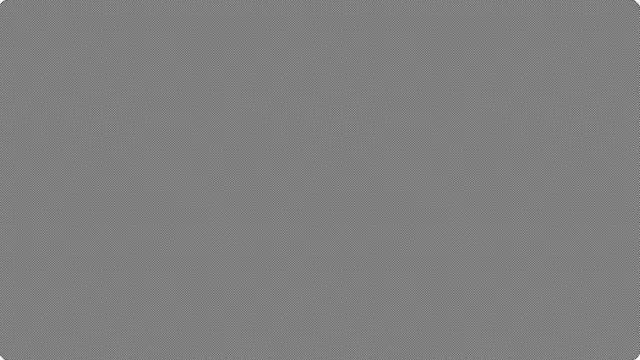
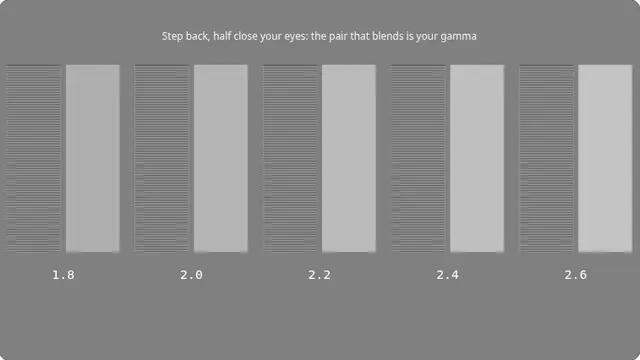
Five pairs of patches. In each, alternating one-pixel lines sit beside the solid grey a display of that gamma would show. The pair that blends is your gamma.

This test compares one-pixel line patterns against solid greys, so it only works at full screen, at 100% zoom, on an unscaled display.

Press F for fullscreen, Esc to exit.

What the gamma calibration test shows

A patch of alternating black and white lines averages to half the light output of white, whatever the display’s gamma. A solid grey does not — the value that looks like half depends entirely on the transfer curve. Put them side by side and the one that matches tells you the curve.

The standard target is 2.2, which is what sRGB assumes and what almost all content is authored for. A display running at 2.4 makes shadows too dark; one at 1.8 makes them washed out.

How to read the gamma patches

Step back from the screen — at least an arm and a half — and half close your eyes so the lines blur into a solid tone. Find the pair where the striped half and the solid half become indistinguishable. The number underneath it is your gamma.

Use the selector to mark the one that matched. Your choice is stored in the address bar, so a reading is a link you can keep or send to someone.

What this test cannot tell you

Only valid at a device pixel ratio of 1. On a HiDPI or scaled display each "line" covers more than one physical pixel or gets resampled, the average is no longer half, and every reading is wrong. The page checks and tells you when this applies — most sites offering this test do not.

Questions

What gamma should my monitor be?

2.2 for almost everything: it is what sRGB specifies and what content is authored against. 2.4 is used for dark-room video work. 1.8 is a legacy Mac value and is not right for anything current.

Why does the test say it is invalid on my screen?

Because your display is scaled — a HiDPI laptop screen, or Windows at 125% or 150%. The test relies on lines exactly one physical pixel wide, and under scaling they are not, so the result would be meaningless. That is why we say so rather than showing you a number.

Can I change my gamma?

Sometimes in the monitor’s own menu, sometimes in the graphics driver control panel. Getting it genuinely right needs a hardware calibrator; this test tells you how far off you are, which is often enough to know whether to bother.

Is the gamma calibration test free?

Yes — free, with no account, no download and no limit. It is a web page, so it runs on any device with a modern browser.

Do I need to be fullscreen?

For anything involving the whole panel, yes. Press F, or the fullscreen button. On a desktop browser F11 also hides the browser toolbars, which matters for the tests where a bright strip at the top of the screen would affect what you are looking at.